04 May 2009

RPG Maker XP vs VX

Having experimented with both RMVX and RMXP for a while now, I have to say that ultimately I still prefer RMXP. There are a number of reasons for this and most of these are because many features available in RMXP were omitted in RMVX. This doesn't really detract from the game-making capability of the program, it's more of an annoyance and inconvenience.

Omissions in RMVX


Following is the list of some of the event commands removed from RMVX. Most (if not all) of these can be reproduced via scripts.

  • Change Text Options - This one has been integrated in the Show Text command in RMVX, along with another option, "Batch Entry", which allows multiple text entries. It automatically splits the text into further text boxes if the 4 default line limit is reached.
  • Button Input Processing - This was one of those commands carried over from RM2K/3, which wasn't really necessary since most keypress processing can be done with scripts.
  • Change Windowskin - This useful command was omitted in RMVX. While windowskins can be changed in RGSS2 by changing the "Window" default skin, I found this command useful as part of the options for changing themes. The disadvantage of its removal (without scripting it into the game) is that only the default windowskin can be changed in Window_Base.
  • Change Map Settings - This command enabled controls for the Panorama (Parallax), Fog and Battle Background graphics, all of which have been omitted in RMVX. These commands can still be emulated with scripts, but it's a major inconvenience.
  • Change Fog Color Tone and Change Fog Opacity - These were additional options for manipulating the Fog effects. Again, scripts can be used to emulate these effects, but it's inconvenient.
  • Wait For Move's Completion - In my opinion, this was a useless command, since it's an option in the Set Move Route command.
  • Prepare for Transition and Execute Transition - I never used these commands, but their purpose was to change the way the screen transitioned between battles. Since it has been omitted in RMVX, it only has one default named "BattleStart" in the Graphics/System folder. A new one can be imported and used, provided its name is "BattleStart", which supersedes the default. It can also be changed via script using the Graphics.transition command.
  • Memorize BGM/BGS and Restore BGM/BGS - These were two more commands imported from RM2K/3. Again I never used them in RMXP (but did in RM2K3), but their purpose was to remember certain background musics and sounds and recall them later. There's really no need for them, so omitting them in RMVX isn't necessarily a bad thing.
  • Deal Damage - This command allowed a specific amount of damage to be inflicted on enemies, used particularly in cut scenes. Again, it can be emulated with scripts, but it's annoying nevertheless that it's missing in RMVX.

Some of the other omissions/changes are:
  • Map Tilesets - Map tilesets are fixed in RMVX, divided into Tiles. There are no options to change them or add additional tilesets or autotiles, as there was in RMXP. There are now basically 5 tiles, including TileE, which is kept blank for "user tiles". These default tilesets are very limiting when making maps and don't allow many options. I think I've seen a script somewhere that enables tileset changing, using complete user-created tilesets completely replacing the default ones (they are named the same, i.e. TileA1, TileA2, etc. through TileE), but haven't ever tried it, let alone create my own.
  • Multiple Icons - Instead of having separate icons for each item, RMVX uses a single iconset capable of "storing" 256 icons. While this has its advantages and disadvantages, again the default Iconset is limiting. The main advantage is that a single sheet can be smaller than 256 individual icons and the major drawback is that only the default Iconset must be used (or replaced with a new one named "IconSet"). It is possible to use multiple Iconsets using RGSS2, but I'll have to go into that in a future entry.


Additional Features in RMVX


Not only has the Ruby script (RGSS2) been improved, but there are some additional commands and features lacking in RMXP.
  • Set Vehicle Location and Get on/off Vehicle - This command is an import from RM2K/3 that seems to have been omitted in RMXP, but has returned in RMVX. Vehicles in RMXP were controlled using events instead.
  • Show Balloon Icon - Balloon Icons are animations above characters' heads designed to simulate their emotions. I like this feature, as previously they had to be created manually and used as Battle Animations.
  • Fadeout Screen and Fadein Screen - Useful for effects between cut scenes or map transitions, these commands fade the screen to and from black.
  • Change Vehicle Graphic - This command simply allows the vehicle graphics to be changed into something else, lacking in RMXP except through events using Set Move Route. As an example of its use, a vehicle can be changed if it has been upgraded (think Final Fantasy III where the boat changes to a submarine and airship).
  • Facesets - The reimplementation of Facesets, lacking in RMXP, is a welcome one. Facesets in RMXP were still possible, but using script methods.


In RGSS2, some additional features have been added, such as text shadows, which is quite a useful effect for emphasis or titles. Some of these I'll cover in a future entry.
03 May 2009

Windowskins

While playing around with the Windowskin Generator I mentioned in a previous entry, I've created some cool Windowskins for use in games.

Old Leather Windowskin


Oceanic Windowskin


Grassy Windowskin


To change the default "Window" skin to one of these ones, right-click to save them onto the hard drive. Import them into RMVX and look in Window_Base for the following:
self.windowskin = Cache.system("Window")
It should be on line 21 by default. Simply replace the default file name with one of the others to use the new windowskin.
02 May 2009

Change Parallax Script

One of many features disabled in RMVX is the ability to change the Parallaxes, which was available in RMXP (and RM2K/3 before that) directly from the Event Commands. Parallaxes are graphics (usually of clouds or distant landscapes) that can scroll behind a map. While it is possible to set the parallax graphic in the map settings only, this "one parallax per map" rule is rather annoying.

As I start learning RGSS, the scripting language used by RMXP and RMVX, and familiarize myself with its nuances, being able to find workarounds and tweaks is half the fun.

A simple but effective (and certainly not perfect) method for changing parallaxes is with a small script.

  • Look in the Game_Map section of the scripts for Scroll Setup and Parallax Background Setup.
  • Place the following between these two sections:
    #----------------------------------------------
    # * Parallax Presetup - Change Parallax
    #----------------------------------------------
    def change_parallax(parallax_name)
        case parallax_name
        when 1
          @parallax_name = "BlueSky"
        when 2
          @parallax_name = "CloudySky"
        when 3
          @parallax_name = "Mountains"
        when 4
          @parallax_name = "Ocean"
        when 5
          @parallax_name = "StarlitSky"
        when 6
          @parallax_name = "Sunset"
        end
      end
    Add any other imported Parallax graphics by adding more "when" commands accordingly. Note: New parallax graphics must be first imported into RMVX under Graphics/Parallaxes.
  • To use an event to change the parallax graphic, use the Script function and place the following:
    $game_map.change_parallax(x)
    where x is the number corresponding to the desired parallax.

Note: With this method, if the Loop Coordinates aren't set directly on the map (via the Map Properties), the parallax will remain static. By changing the Horizontal Loop and/or Vertical Loop settings here it will make the parallax graphic scroll in the background.

Windowskin Generator

There haven't been many updates recently because I've been offline for the past three or so weeks. Our ISP decided to double their monthly fees overnight and without telling us, then demanded that we pay around $400 to reconnect. And they would only accept the full amount before reconnecting. (I wanted to pay them direct at their office with an envelope full of leaves, since "money grows on trees" apparently!)

Anyway, moving on...

I found this awesome and very useful utility. It's a Windowskin Generator for RMVX and it works!

The idea behind this is to make Windowskin creation easy by selecting various parts and applying them to the skin. It even has a preview area where you can see what the resultant image will look like! Once you're done, the finished product can be saved and imported into RMVX for use in your games.

Read a mini-review here or download it directly here, then extract it to the RMVX Projects folder (using WinRar or Winzip) and open it up in the RMVX program.

It can be run directly from RMVX or as a standalone program. If used as standalone, the RGSS2002e.dll may be needed. Information on creating and running standalone games (including downloading the appropriate files) can be found on the RPG RPG Revolution forum.
30 March 2009

Resource Converting

Because of the different formats used by the RPG Maker programs, it isn't possible to port resources over from RMXP to RMVX without first tweaking them. Otherwise, there will be some very strange side-effects. So, if you've created some really cool character sets for RMXP, they wouldn't automatically work in RMVX.

Thankfully, there are some nice utilities that make conversion easy.

  • RMVX Characterset Converter (RMVX): This awesome utility makes it possible to convert RMXP character sets to RMVX format, which can then be saved as BMP, JPG or PNG formats. You can even convert those old RM2K/3 charsets to RMVX formats. It can be downloaded here (download not available).
  • RM2K/3-To-RMXP Resource Converter (RMXP): As the title suggests, this utility converts those old RPG Maker 2000/3 resources to RMXP. I've used this on numerous occasions to make games compatible with RMXP. Note: When using this program, be sure to select the GAME folder for the resources to convert, NOT the resource folder itself. The utility can be downloaded from Kobra's Realm (download not available).
  • Charas.EX (RM2K/3): This utility allows you to create charsets from scratch or modify existing charsets. Although the utility is specifically for RM2K/3, charsets can be converted using the two utilities above. The program can be downloaded from Kobra's Realm (website not available) or charsets can be developed online at Charas Project.
  • RMXP Resource Wizard (RMXP): This program, in my opinion, is the definitive RM2K/3 to RMXP converter. With it, you can convert any RM2K/3 resource into a compatible RMXP format. You can download it from RPG Crisis (you will need a membership to access the file).

These are the only good resource converters I know about, but if I find (and test) any more I'll add them.
26 February 2009

Create Your Own Resources Online

If you're not a great graphic artist, like me, there are several websites that allow you to create your own, thus:

  • Character Sprite Generator (RMXP) - No longer available! This is an effective character creator, but is extremely limited on extras. I don't think it's been updated for a while either.
  • Chibi KYARATSUKURU (RMXP) - This is a more comprehensive character maker, Google-translated into English from its original Japanese version. I love creating characters here, even if none of them ever make it into games!
  • RPG Material - Character Generation (RMVX) - This is the ultimate RMVX character creator (and the only one as far as I know). Not only can you create your own characters by setting a series of options, but you can randomize characters. The output even has the appropriate facesets to use too!
  • RPG Material - Roof Chipset Maker (RMXP/RMVX) - No longer available! With this nifty resource tool, you can create your own rooftops for the main chipsets by manipulating a few options or randomizing them. The roof outputs can become part of the map chipsets.

While these are the best resources for creating RMXP/RMVX chipsets conveniently online, there are several methods for character sets and chipsets from older versions of RPG Maker compatible with RMXP/RMVX. I'll cover that in a future entry.
18 January 2009

RMXP Compatibility with Vista

One of the commonest questions I'm asked is whether RMXP is compatible with Windows Vista. The simple answer is "Yes and No". Rather than attempting to use RMXP on Vista (better in my opinion though it is), it's better to use RMVX for Vista machines.

One of the problems with Vista is that it is extremely buggy and is known for its incompatibility issues. Running RMXP on Vista machines is possible, but not without endless hours tweaking certain system settings so that it can at least work half the time.

A common problem is that RMXP seems to work, but then suddenly freezes at any point (usually when playtesting games) or it will produce some obscure error message. Usually when this happens, it's due to compatibility issues (either with the system itself or hardware conflicts).

One workaround is to make sure you have full Admin rights and change its permission to "Run compatibility mode for XP SP2". To set these options, this link will help. If there are any messages for updates, it's probably prudent to download and install them.

To determine whether RMXP will be compatible with your Vista system, you can check at the Microsoft Compatibility Check. Hopefully this should help run RMXP on Vista machines.

Create Your Own Characters

If you've ever wanted to create your own charsets for RM2K/3, but (like me) are not an artist, there are several resources available for doing just that. These are the best ones I've found:

  • Chara.EX - This is probably the best known site in the RM2K/3 community. Not only can you design characters online and save them onto your hard drive, you can also download an offline version too. Creating charsets with either method is quick, easy and fun.
  • Character Maker 1999 - With this neat program, you can edit any resource for RM2K/3, including adding status effects (if you know about transparencies). This program can also be used for producing resources for RMXP and RMVX.

Other programs that are useful for creating resources are:

  • Irfanview - This program is useful for cropping images and correcting transparency issues. In some games, it is possible to take snapshots, pasting and cropping them in Irfanview, then copying the cropped image and pasting the result in Character Maker 1999 to be further modified.
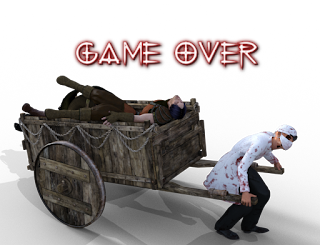
  • Paint Shop Pro - Now owned by Corel, Paint Shop Pro is the editor to use for more complex designs, but I'd recommend using version 7.04 (if you can find it) rather than the latest version, as it is cumbersome and unnecessarily complex. I usually use this program to design the Title and Game Over screens, then use Irfanview for final size modification.
17 January 2009

Create Your Own Resources

Sometimes the resources that come with RMXP are not enough and you might want to create your own. There are several websites and programs that allow such customization, thus:


Utilities

  • Dan's RMXP Tool - A useful tool for inspiration, which allows you to create names, titles, items, etc.
  • Move Event - This utility helps with programming complex character movements, which can otherwise be very tedious.
  • Character Maker - Allows the creation of sprites and character sets. (While this program is limited on features, some cool character sets can still be made from it.)
  • Face Maker - What's a character set without a matching face? This helps in creating such facesets for message boxes. (To download, you'll have to become a member of the forum, but it's well worth it!)

Online Creators

  • Character Sprite Generator - A good sprite/character maker for RMXP, but with limited resources. You can change the hair, eyes, clothing, etc.

8-Directional Movement (2K3)

This is a simple method for moving in 8 directions, rather than the standard 4 (up, down, left and right). This is not the best method, but it is workable, using the keypad, which means that Numlock must be on.

Knowledge Base

  • Common Events
  • Forks/Branch Conditions
  • Variables


Variables

We'll only need one variable for the movement system, 0001:Dir Move.

Common Events

Open the Database (F9) and create a new Common Event, 8-Dir Movement and set the "Trigger" to "Parallel Process". This means that it will run in the background until one of the movement keys is pressed. Leave the "Switch" blank.

In the "Event Commands" section, place the following commands:

  • First create a "Loop" (Tab 3), into which everything will be placed.
    <>Loop
    <>
    : <>End Loop
  • Next, we'll need to define the "Key Input Processing" (Tab 3), which will be stored in our variable 0001:Dir Move. Make sure the "Wait Until Key Pressed" option is checked and only the "Number Keys 0-9 (10-19)" is checked as well.

    <>Key Input Proc: [0001:Dir Move]

  • This is where things could become rather confusing, but it's not really that hard. Create 8 "Branch Conditions" with the "Else" option checked for each.

    Set the first condition to "Variable 0001:Dir Move, Number Equal To 11 (the numerical value for 1, i.e. down/left).
    <>Branch if Var [0001:Dir Move] is 11
    <>
    : Else Handler
    <>
    : End

    Under the "Branch if" create a "Move Event" (Tab 2) and set the movement to down/left using the "Move Down/Left", setting the "Move Event" to "Hero" (usually selected by default).

    <>Branch if Var [0001:Dir Move] is 11
    <>Move Event: Hero, Move Down/Left
    : Else Handler
    <>
    : End

    Under the "Else Handler", repeat the process, but change the variable number and movement in the "Move Event" command to correspond with the direction (i.e. with the second fork, the "Variable" would be set to 12 and the direction to "Down", but ignoring number 15. Continue all the way up to 19.
  • Finally, in the last "Else Handler" insert a "Break Loop" command (Tab 3).

Complete Code

<>Loop
<>Key Input Proc: [0001:Dir Move]
<>Branch if Var [0001:Dir Move] is 11
<>Move Event: Hero, Move Down/Left
: Else Handler
<>Branch if Var [0001:Dir Move] is 12
<>Move Event: Hero, Move Down
: Else Handler
<>Branch if Var [0001:Dir Move] is 13
<>Move Event: Hero, Move Down/Right
: Else Handler
<>Branch if Var [0001:Dir Move] is 14
<>Move Event: Hero, Move Left
: Else Handler
<>Branch if Var [0001:Dir Move] is 16
<>Move Event: Hero, Move Right
: Else Handler
<>Branch if Var [0001:Dir Move] is 17
<>Move Event: Hero, Move Up/Left
: Else Handler
<>Branch if Var [0001:Dir Move] is 18
<>Move Event: Hero, Move Up
: Else Handler
<>Branch if Var [0001:Dir Move] is 19
<>Move Event: Hero, Move Up/Right
: Else Handler
<>Break Loop
: End
: End
: End
: End
: End
: End
: End
: End
: End Loop

Notes

The downside to this method is that only the default movement keys (up, down, left and right) will repeat if they are held down. The other keys will need to be continuously pressed in order to move in that direction.
Related Posts with Thumbnails
Template Design "Perfect World" by SkinCorner